SOCIAL MEDIA MANAGING TOOLS I CAN’T LIVE WITHOUT

Planning Post Like A BOSS!

Having a well-rounded social media presence is a powerful tool for businesses. If done right; you can find new customers, drive sales to your website and foster a community.

When searching for social media managing tools, I look for a few key features. Will it save me time? Will it keep me organized? Is it free or affordable? With those things in mind, I created a list of tools that can allow you to automate the creation of post and analyze each \social media account:

1. LATER

Cost: Free for one social set. Paid plans starts at $12.50/month

Later allows you to queue and publish post in a calendar format for Instagram and Facebook. When queuing, you can easily drag-and-drop images into the calendar to schedule them. Then add a caption, hashtags, the location and tag people.

Once posts are created, they will automatically publish at the time you select. This way of planning allows you to batch produce multiple posts, giving you more time to focus on other tedious tasks.
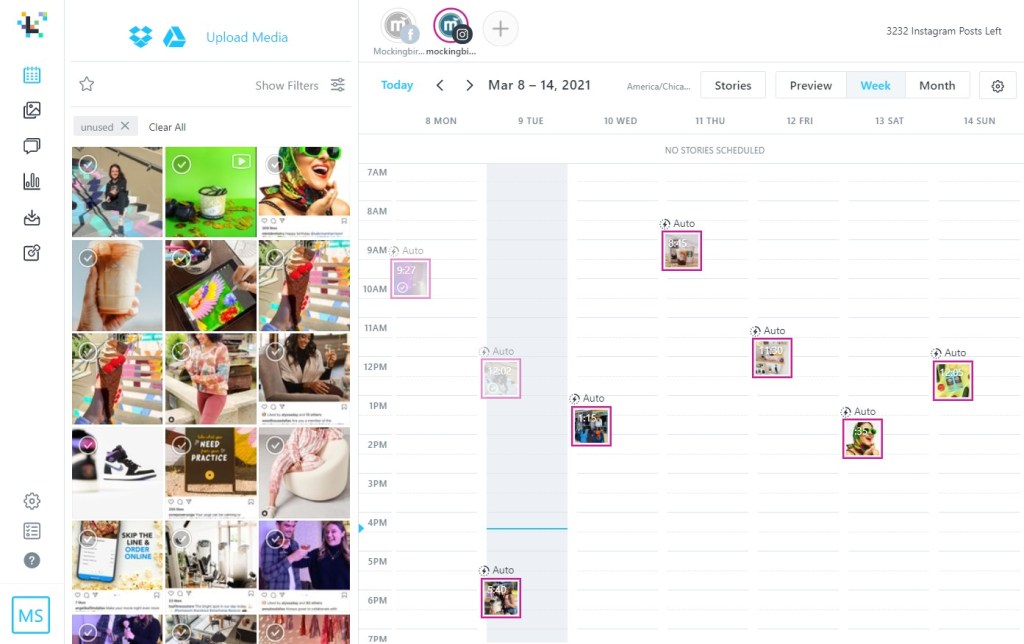
Later Social Media Calendar

Another feature of Later that helps in planning posts is the analytics they offer. The post analytics tab gives you a quick look at the likes, comments, impressions, reach and saves of each post. This lets you track the performance of recent posts in a single place and make note of what is or isn’t working.

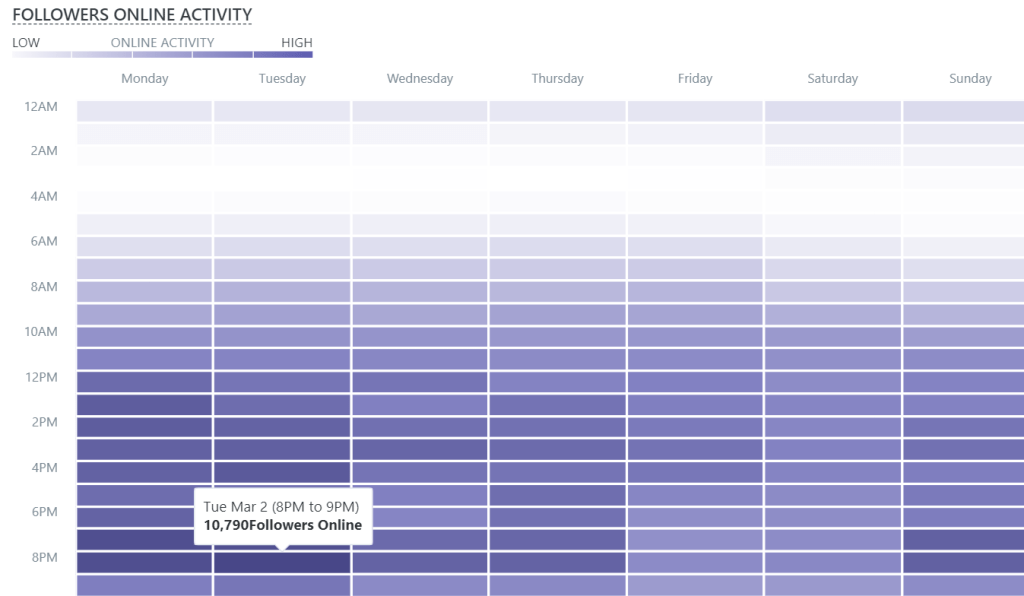
The audience analytics tab gives you insight into how many followers are on at each hour of the day. This information can be useful when determining the best times to post and compiling end of month reports.
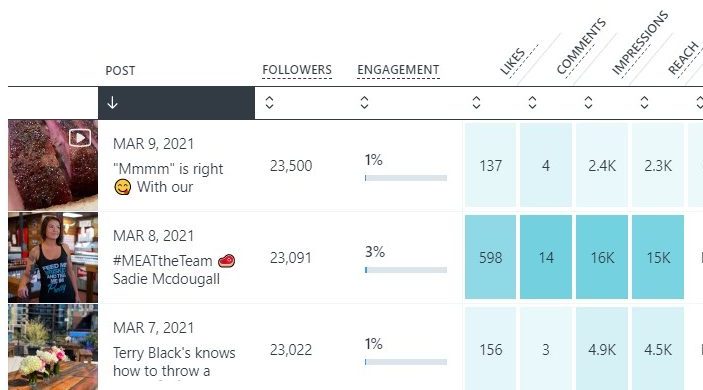
Later Post Analytics
Later Audience Analytics

2. LIGHTROOM

Cost: $9.99/month for Creative Cloud

Adobe Lightroom lets you organize a high volume of photos and apply edits. One of my favorite features is the ability to copy and paste edits to a batch of photos at once. This lets you stay on brand and keep the same aesthetic across all the photos you will be posting.

Additionally, Lightroom is available on desktop and mobile. This allows you to make initial edits on a computer and quick edits on a phone.

Lightroom Editing Dashboard

3. UNSPLASH

Cost: Free

Unsplash is a database with high-resolution, copyright-free images that is free for anyone to use. I often go there to find background images when creating flyers for social media as they have a wide variety of options to choose from.
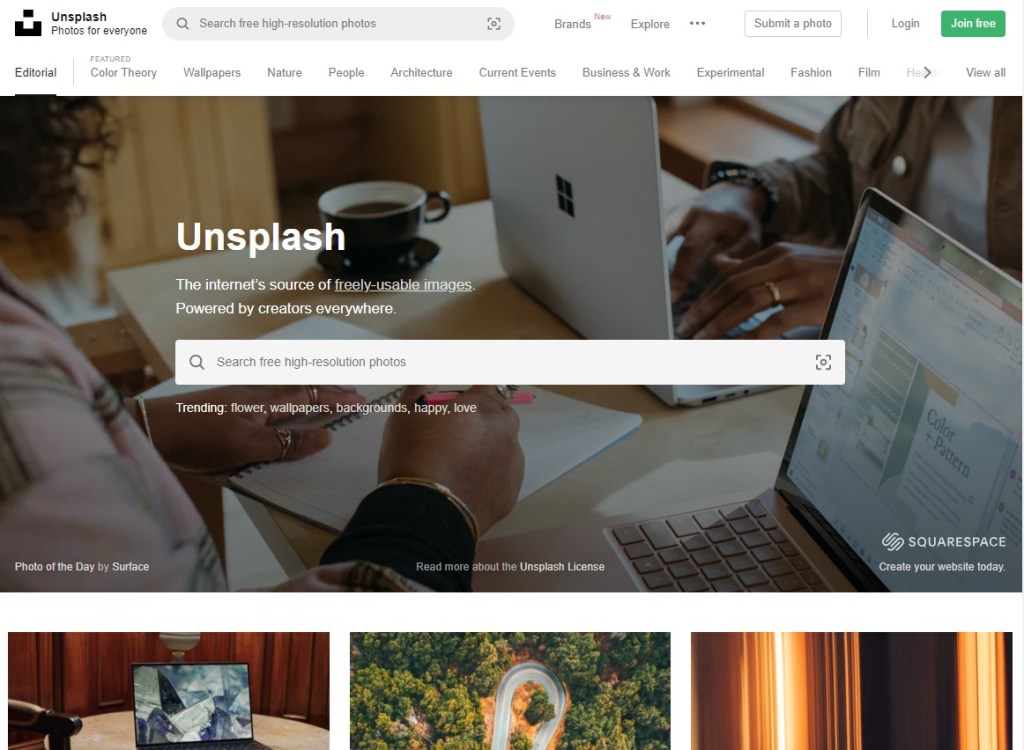
Unsplash Homepage

With two years of social media managing experience, I have had my fair share of posts that perform above and below expectations. Check out some of my social media work here!
CHOOSING THE RIGHT FONTS FOR FLYERS

To serif or not to serif…

When I first started creating flyers and graphics for client’s social media, I would spend hours trying to find the perfect fonts. One of the hardest parts for me was the massive selection and variety to choose from. Not only do your fonts have to be aesthetically pleasing, but they also need to be legible and cohesive to the overall design. I’ve created a list of tips that help in my decision-making process:

1. ESTABLISH THE STYLE

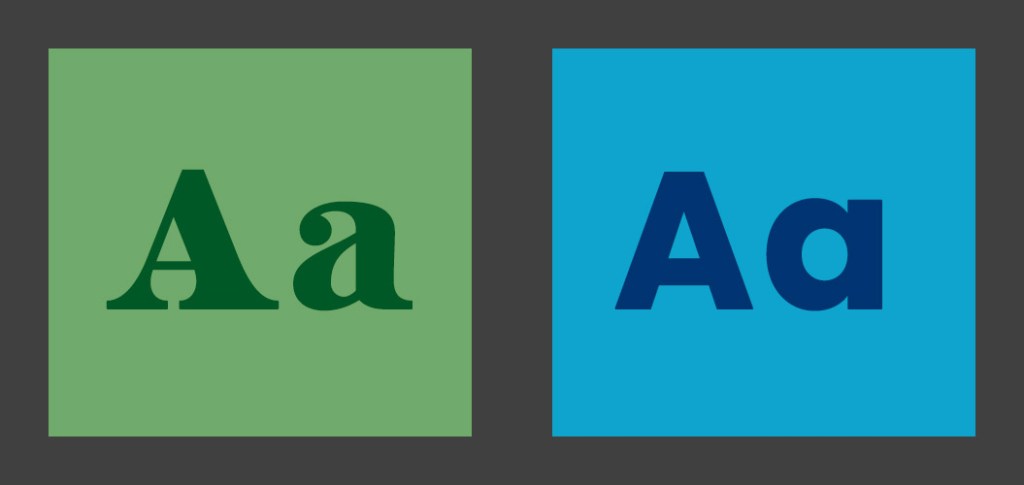
Since the options are endless with fonts, the first step you should take is choosing what typeface you want to use. You can significantly narrow down the options by choosing to use a serif, sans serif or script font.
It’s also important to look at the client and make sure the fonts will make sense. By choosing fonts that pair with the client’s existing social media—traditional or fun, elegant or edgy—you can attract the right customers.

2. LOOK THROUGH FONT DIRECTORIES

The easiest way to level up a flyer for social media is by choosing fonts that aren’t used everywhere. When I first started designing, I didn’t have access to Adobe Creative Cloud and wanted to elevate my projects past default fonts. So I utilized websites like Dafont and GoogleFonts. Both are free, easy to navigate and offer thousands of options.

If you have access to Adobe Creative Cloud, I highly recommend taking advantage of the font library they offer. Fonts you active automatically sync to your Photoshop and Illustrator. Plus they are already licensed for personal and commercial use.

3. LIMIT THE NUMBER OF FONTS

Flyers on social media aren’t meant to have lots of copy. Partly due to the small canvas size platforms support, and partly because people won’t stick around long enough to read everything. With that being said three fonts is the max I use for a flyer. Generally one font for the title and one/two for the supporting copy. Any more than that can get pretty busy and overwhelming for the audience.

4. CREATE CONTRAST

If I am struggling with the cohesiveness of a project, creating contrast is my next step. This can be achieved in a variety of ways. I recommend trying to mix font styles, sizes and different color combinations.

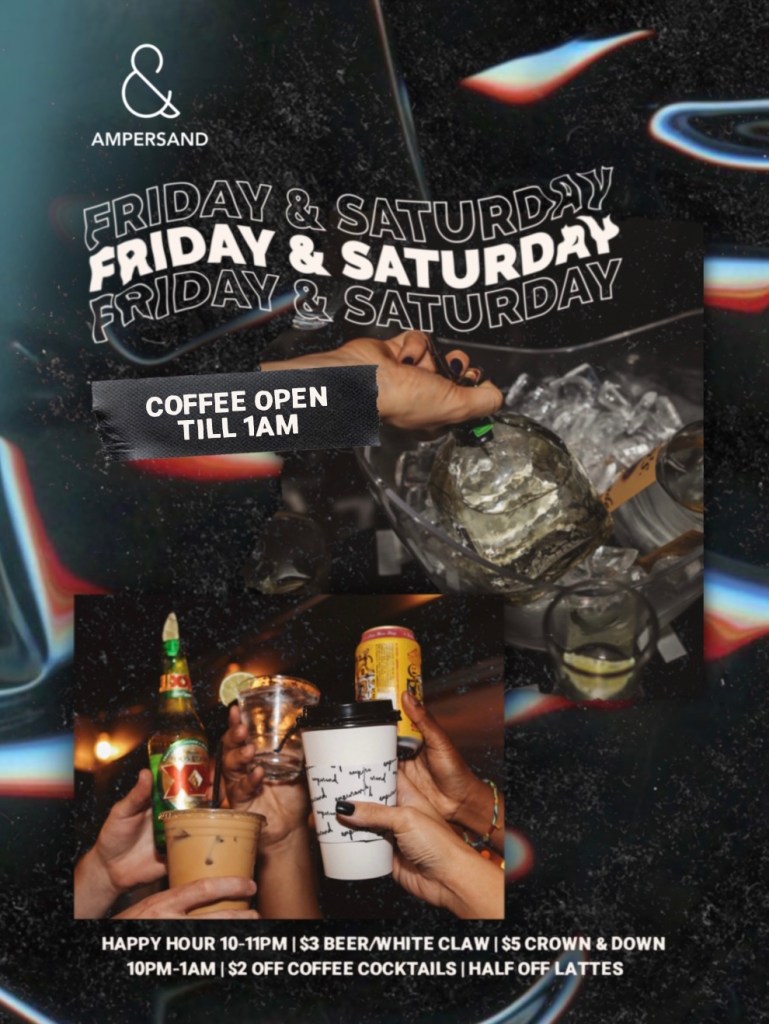
Ampersand is a coffee shop with a youthful brand image. I used a bold serif for the title in hopes to grab people’s attention. Then a sans serif for the smaller details.

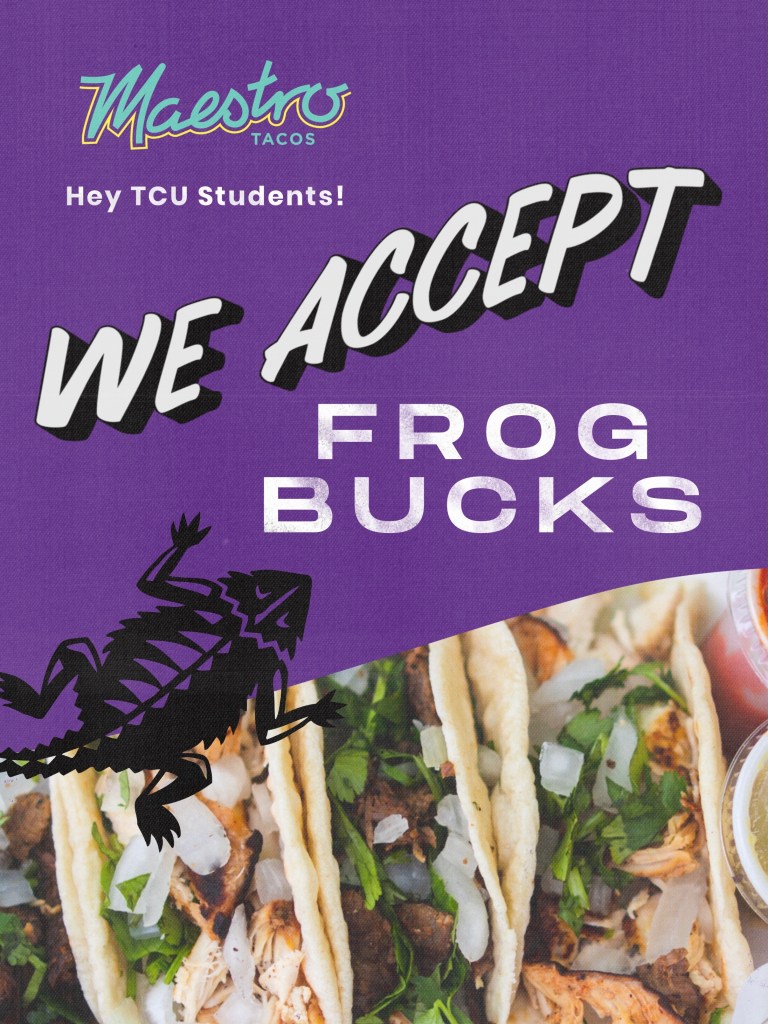
Maestro Tacos is an authentic taqueria and has a simple brand image. I chose a hand-lettering font for “we accept” to compliment the murals they have in the restaurant. Then a rustic sans serif to create contrast.